Watchlists
Watchlists allow you to monitor and organize specific stock tickers, ETFs, and currencies. You can customize their order, set market hours, and track real-time changes, volume, and intraday charts.
Show screenshot
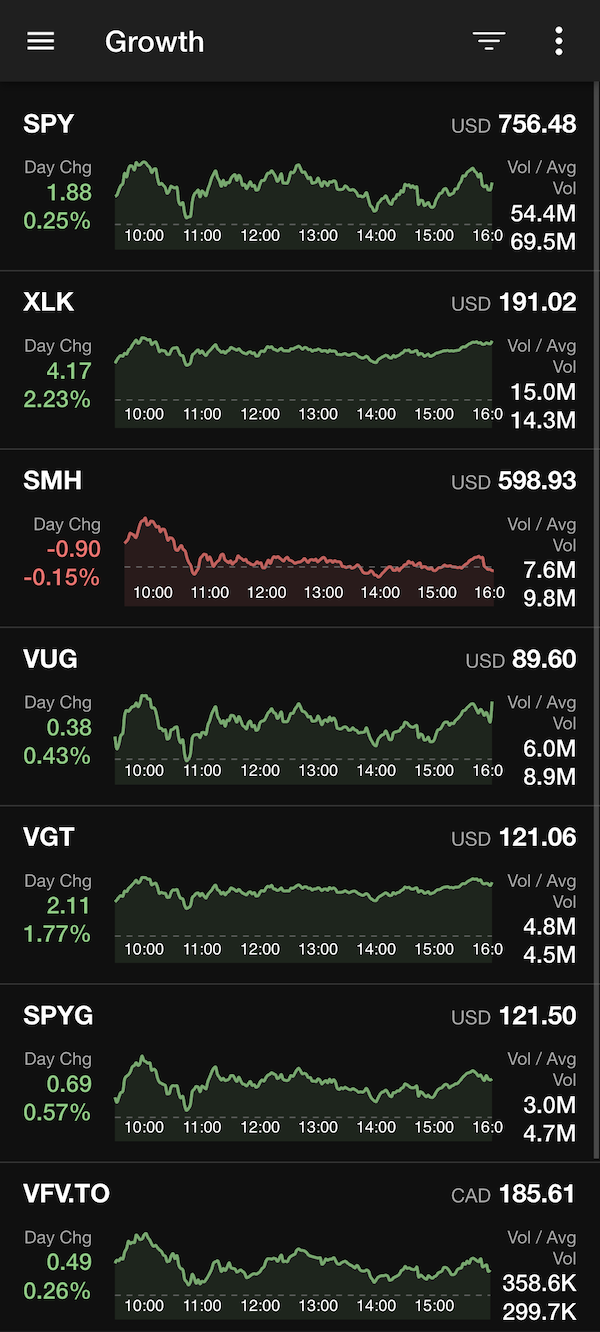
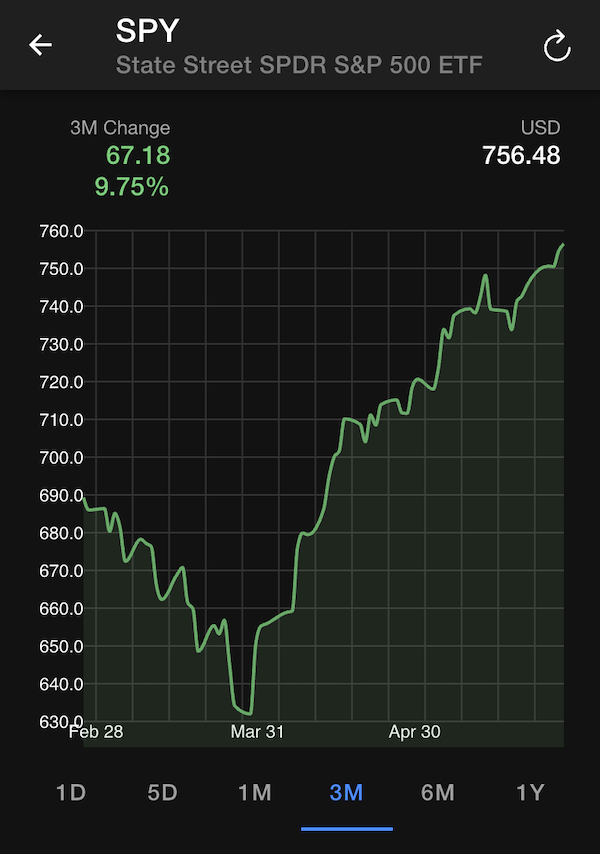
By tapping on any watchlist entry, you can see a more detailed chart for that symbol, where you can select one of the predefined time intervals to view the performance of that security.
Show screenshot
Creating a Watchlist
- Open the main navigation sidebar by tapping the Menu (☰) icon in the top-left corner.
- Locate the Watchlists section header.
- Tap ADD NEW next to the section header.
- Enter a name for your watchlist, add your desired stock symbols, and tap SAVE.
Editing a Watchlist
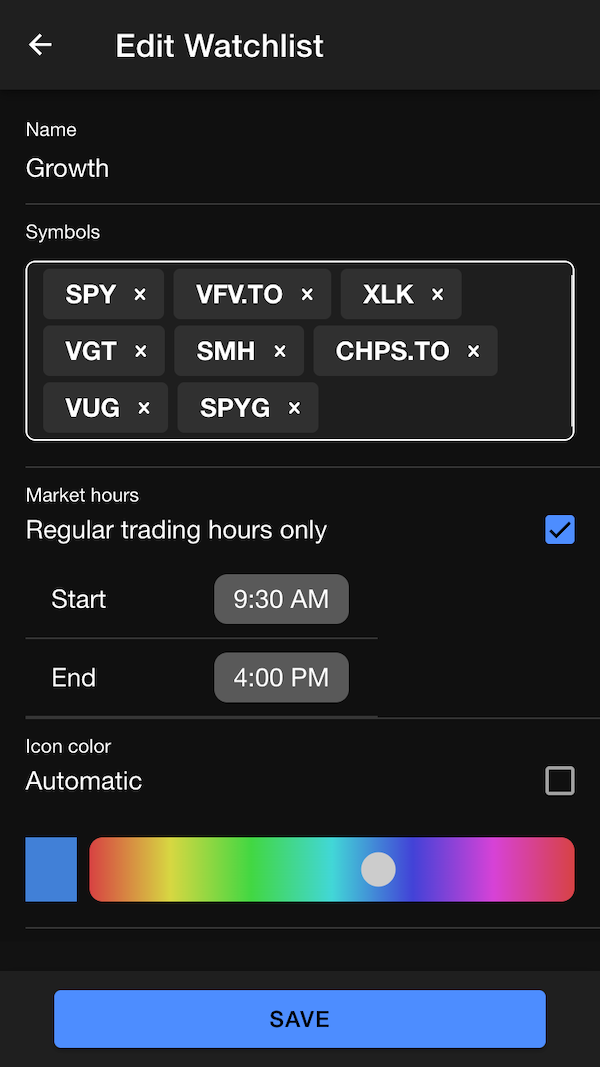
You can modify an existing watchlist's symbols, trading configurations, and visual branding at any time.
How to Access Edit Mode
While viewing a specific watchlist, tap the Edit (pencil) icon in the top app bar to open the Edit Watchlist screen.
Configuration Options
- Name: Update the display title of your watchlist.
- Symbols:
- Add symbols: Tap the symbols area to search and append new tickers (e.g.,
SPY,XLK,VFV.TO). - Remove symbols: Tap the
×icon on any individual symbol badge to delete it.
- Add symbols: Tap the symbols area to search and append new tickers (e.g.,
- Market Hours: Toggle Regular trading hours only to restrict data tracking. When enabled, you can define specific Start and End times (e.g., 9:30 AM to 4:00 PM).
- Icon Color: Uncheck Automatic to select a custom accent color using the color spectrum slider. This color appears next to the watchlist name in your sidebar.
Tap the SAVE button at the bottom of the screen to commit your changes.
Show screenshot
Managing and Viewing Watchlists
Sorting Tickers
To change how data is ordered within a watchlist:
- Tap the Sort (filter lines) icon in the top right of the watchlist screen.
- Select one of the following criteria from the Sort by modal:
- Symbol (Alphabetical)
- Price
- Change
- Change %
- Volume
- Average Volume
- As Entered (Custom manual order)
- Choose either ASCENDING or DESCENDING at the bottom of the modal.
Deleting a Watchlist
If you no longer need a watchlist, open it and tap the Delete (trash can) icon in the top app bar. Confirm the deletion when prompted.
Interface Breakdown
Each ticker entry inside a watchlist provides a snapshot of market activity:
- Ticker & Currency: Displays the symbol (e.g.,
SPY) and trading currency (USD,CAD). - Day Change: Tracks the absolute and percentage price movement for the day (color-coded green for gains, red for losses).
- Intraday Mini-Chart: A timeline visualization of the asset's price movement across key intervals (05:00, 08:00, 11:00, 14:00, 17:00).
- Volume Metrics: Displays current Vol directly above the asset's Avg Vol (e.g.,
54.4Mcurrent /69.5Maverage) for rapid liquidity assessments.